
PJeOffice Not Opening on Mac: Fix Launch Errors
If PJeOffice is not opening on your Mac, start with the processor, the completed DMG installation, and the exact macOS warning. Then separate an application launch problem from a certificate-driver or court-portal problem before reinstalling.
Start the Mac launch checkPJeOffice not opening on Mac: start with the failed layer
PJeOffice launch failures usually belong to one of four layers: the build, the application installation, macOS security, or a certificate component that is only noticed after launch.
The first decision is the processor. A Mac with an Apple Silicon M1, M2, M3, M4, or later chip should use the Apple Silicon build listed by the official PJeOffice guide. A Mac that reports an Intel processor should use the Intel build. The MacBook, iMac, or Mac mini model name is not enough because several product families were sold with both processor types.
The second decision is whether the DMG installation finished. Opening a disk image mounts a temporary volume; it does not always place the application in the Applications folder. If the app is still only inside the mounted image, eject that image after completing the normal copy or installer flow and launch the installed application from Applications.
The third decision is the type of macOS message. A security prompt calls for a source and file review followed by a specific approval path. A message that the app cannot run on this Mac points back to architecture or an incomplete build. If the app launches but PJe cannot communicate with it, the issue has moved to the local connection, browser, certificate, or court service layer.
Match PJeOffice to Apple Silicon or Intel
Use the hardware value shown by macOS, not the purchase year or the marketing name of the Mac.
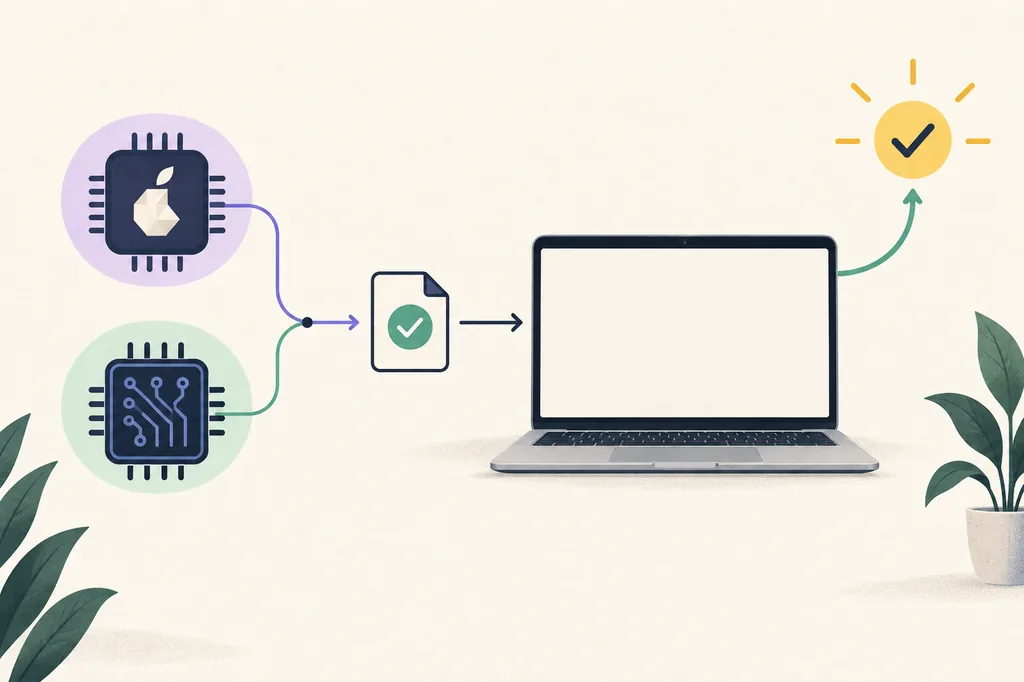
Choose the Apple Silicon DMG for a Mac that displays an Apple M-series chip. Choose the Intel DMG for a Mac that displays an Intel processor. The current official guide lists both desktop variants because the application and related certificate middleware must agree with the computer architecture.
Rosetta can help some Intel applications run on Apple Silicon, but it is not a reason to ignore the native build. Start with the official Apple Silicon package when it is available. Rosetta also cannot make an Intel-only token driver or PKCS#11 library compatible with a newer macOS setup.
If you downloaded both DMGs, keep only the one that matches the About This Mac result while diagnosing the launch. Multiple mounted images and duplicate application copies make it harder to tell which file was actually opened.
- Apple M1, M2, M3, M4, or later: choose the Apple Silicon DMG.
- Intel Core processor: choose the Intel DMG.
- Do not infer the processor from MacBook size, color, or release year.
- Match certificate middleware and token drivers to the same macOS and processor environment.
Finish the PJeOffice Mac installation
Treat the disk image, installed application, and first launch as separate checkpoints.
- 1
Verify the source and filename
Before opening the DMG, confirm the first-party PJe host, the current listed version, and the mac_a64 or mac_x64 suffix. A court acronym in a third-party filename is not proof that the file is the right one.
- 2
Mount the disk image
Open the DMG from Downloads and wait for macOS to mount it. If the volume opens with an installer or a copy-to-Applications instruction, complete that exact step.
- 3
Launch from Applications
After installation, eject the disk image and open the application from Applications. Do not repeatedly launch an app that still lives only on the temporary mounted volume.
- 4
Review a specific security warning
If macOS blocks the app, verify the source and use the current Privacy & Security controls to review that named application. Do not disable Gatekeeper or other protections globally.
- 5
Test the certificate after launch
Open PJeOffice Pro, configure the A1 file or A3 device, and then start a new authentication request from the required court portal. A successful launch does not by itself prove that the certificate or portal flow works.
Handle Gatekeeper and security prompts carefully
A security warning should identify the file and lead to a narrow review, not a system-wide bypass.
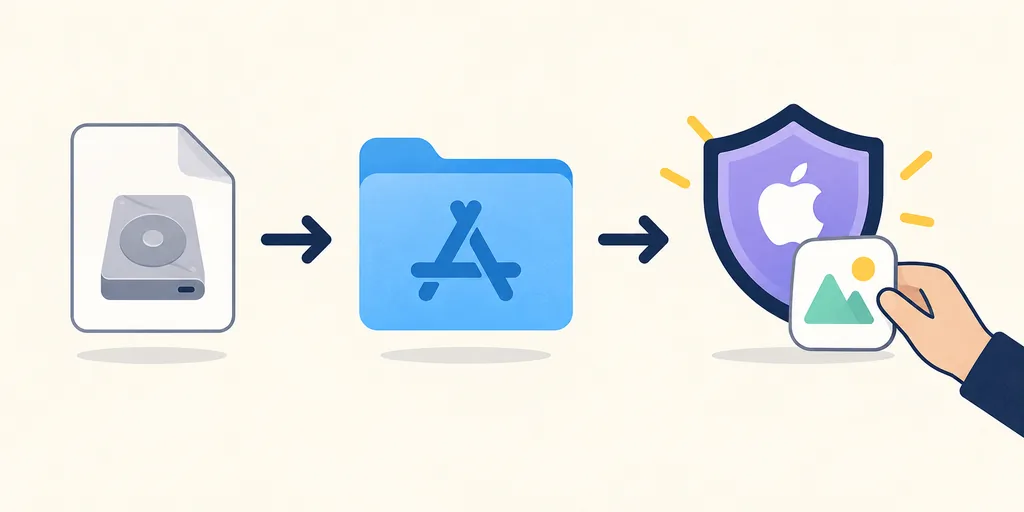
First confirm that the file came from the official PJe distribution path and that the filename matches the selected architecture. If the source or filename is unexpected, stop and return to the verified download matrix rather than approving an unknown file.
When the source is known and macOS identifies a specific application, use the system's current Privacy & Security review path for that application. The wording and location of controls can change between macOS releases, so follow the prompt shown by the Mac instead of copying an old screenshot from an unrelated version.
Do not turn off Gatekeeper, antivirus, firewall rules, or organizational security controls for the whole computer just to make a launch succeed. If a managed Mac blocks the application, ask the organization or court support team to review the event and the approved software policy.
- Confirm the first-party source before approving a blocked app.
- Review the exact named application and the installed copy.
- Keep macOS protections enabled outside the narrow troubleshooting step.
- On a managed Mac, follow the administrator's approved software process.
Find the failed layer before reinstalling PJeOffice
The phrase “PJeOffice does not work” can describe different components. Test the last stage that should have succeeded.
| Symptom | Check first | Likely next step |
|---|---|---|
| The app cannot be opened on this Mac | Intel versus Apple Silicon and completed installation | Use the matching DMG, finish the install, and test one copy from Applications |
| macOS says the developer or app cannot be verified | Official source, filename, and the specific blocked application | Review the narrow security prompt or ask managed-device support |
| PJe says PJeOffice is unavailable | Whether the application is running and the browser request reaches it | Use the availability guide |
| PJeOffice opens but no certificate appears | A1 configuration, A3 token middleware, PKCS#11, and architecture | Use the certificate guide |
| The certificate appears but one court fails | The official portal, account, browser flow, and court status | Treat it as a portal or court-service issue before reinstalling the Mac app |
A Mac launch fix cannot repair every PJeOffice error
Once the application opens, move the diagnosis to the component that actually failed.
An A1 certificate is normally a protected file, while an A3 certificate depends on a token, smart card, reader, or managed device and its vendor middleware. If the vendor utility cannot see an A3 device, PJeOffice is not the first component to repair. If the certificate is visible in the vendor tool but absent in PJeOffice, check the certificate source, PKCS#11 library, and processor compatibility.
A Mac with Apple Silicon can run a compatible PJeOffice build and still fail to sign if the token vendor supplies only an Intel library or an unsupported macOS driver. Rosetta may help a supported Intel application, but it does not replace an updated certificate middleware package. Ask the certificate authority or device manufacturer for the supported combination before selecting a random library.
If PJeOffice opens, lists the certificate, and works on one portal but not another, do not keep reinstalling the application. Start from the court's official website, open a fresh authentication request, and check whether the portal, account, browser permission, or remote service is the failing layer. Keep private keys, passwords, PINs, and confidential case data out of any diagnostic exchange.
What to record for support
Record the Mac model family, the Chip or Processor value, macOS version, PJeOffice version, certificate type, middleware version, exact error, court portal, and the last successful step. Do not send the A1 file, private key, token PIN, or confidential filing.
Separate the Mac, certificate, browser, and court layers
A clean launch proves only the first layer. The full signing path has several independent checkpoints.
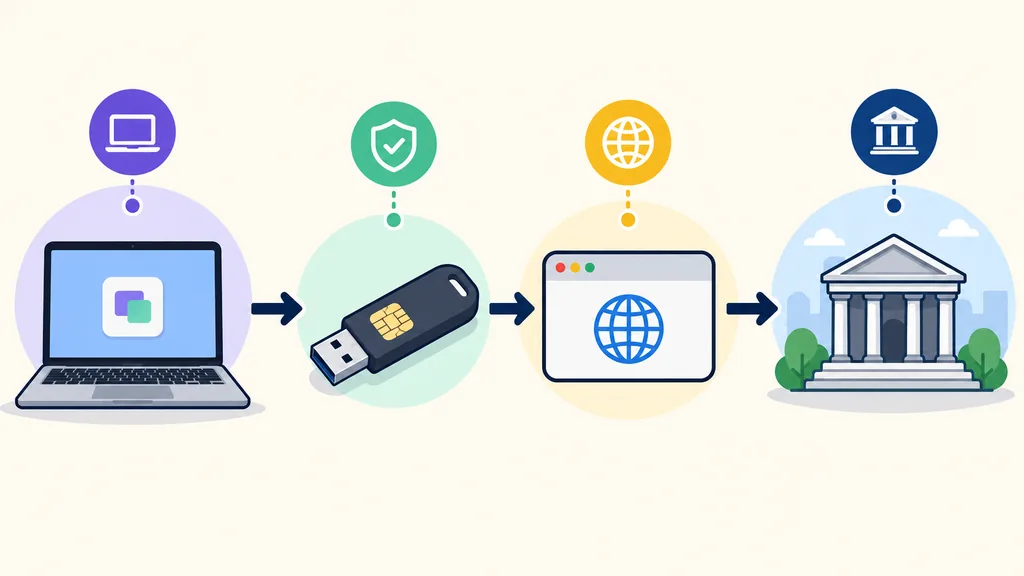
Think of the workflow as a chain: the Mac must run a compatible application; the application must read the certificate; the browser must reach the local signer; and the court portal must accept the authentication request. A failure later in the chain can look like a generic PJeOffice error even when the earlier layer is healthy.
Test from left to right. Open PJeOffice directly, check the certificate list, start a fresh portal request, and then compare the result with an official court status notice or another authorized workstation. This sequence limits unnecessary changes and gives support teams useful evidence instead of a vague reinstall request.
- Application: does PJeOffice open and stay running?
- Certificate: does the expected A1 or A3 identity appear?
- Browser: does a new portal request reach the local signer?
- Court: is the remote service, account, and portal flow available?
PJeOffice not opening on Mac: common questions
Short answers for common Mac launch and compatibility problems.
Why is PJeOffice not opening on my Mac?
Start by checking whether the Mac is Apple Silicon or Intel, whether the correct DMG installation finished, and what exact macOS warning appears. A wrong build, an app still inside the mounted DMG, and a blocked application require different fixes.
Which PJeOffice file should I use on an M1, M2, M3, or M4 Mac?
Use the Apple Silicon DMG listed in the official PJeOffice download matrix. Confirm the Chip field in About This Mac rather than relying on the MacBook or iMac model name.
Can I use the Intel PJeOffice build with Rosetta?
Rosetta can support some Intel applications, but the official guide provides a native Apple Silicon build. Use the native build first unless current official support gives a specific reason to use Intel.
Why does macOS say it cannot verify PJeOffice?
Verify the first-party source and exact filename first. If macOS identifies that specific application, use the current Privacy & Security review path for the named app; do not disable Gatekeeper globally.