How to Install PJeOffice Pro
Install PJeOffice Pro by choosing the verified 2.5.16u file for your operating system, closing older signer instances, configuring the certificate, and testing the PJe portal before a real filing.
Choose an installerHow to install PJeOffice Pro correctly
A reliable installation includes the application, certificate, and court-portal test.
Do not judge success only by whether an installer reaches its final screen. PJeOffice Pro should open, list the correct certificate, receive a request from the intended PJe portal, and complete a controlled test authentication. Recording those stages makes later troubleshooting much faster.
Before you install PJeOffice
A short check prevents the most common architecture and duplicate-instance problems.
- Confirm whether the computer uses Windows, macOS, or Linux.
- Confirm 32-bit versus 64-bit on Windows or Linux; confirm Intel versus Apple Silicon on macOS.
- Download only from the official PJe host and compare the complete filename.
- Exit the older PJeOffice signer from the system tray or menu before upgrading.
- Make sure the certificate authority's current driver or middleware is installed for an A3 token.
- Have authorization from the workstation administrator if the computer is managed by a court, law firm, agency, or company.
Install PJeOffice Pro step by step
The labels vary by platform, but the decision sequence remains consistent.
- 1
Download the matching installer
Use the verified download matrix. Windows uses EXE, macOS uses DMG, and Linux uses ZIP. A Mac with an M-series processor needs the Apple Silicon file.
- 2
Close the old signer
If an older PJeOffice instance is running, open its tray or application menu and exit. This helps prevent an upgrade prompt or local service from competing with a second process.
- 3
Open the installer
Confirm the source and filename again. Follow the operating-system prompt without disabling system security globally. On a managed PC, use the approved administrator process.
- 4
Finish and launch PJeOffice Pro
Open the new application from Start, Applications, or the extracted Linux package. The Pro edition includes PDF and video functions in addition to certificate signing.
- 5
Select the certificate source
Choose the PJeOffice or operating-system certificate source that matches the workstation. For a token, wait until the device is recognized before refreshing certificates.
- 6
Test with the required PJe portal
Initiate authentication from the court portal, approve the local application request, and confirm that the correct certificate appears. Test with a non-destructive login flow before signing a live submission.
Identify the Pro edition after installation
The official guide distinguishes the newer edition by its interface, icon, and added local file tools.
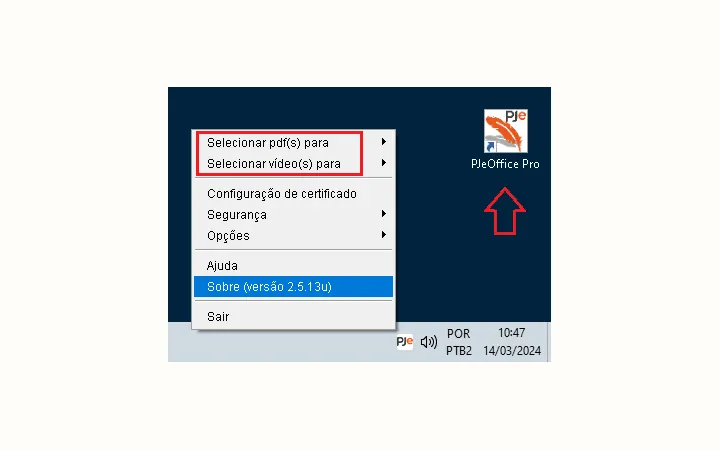
After launch, verify that the application is PJeOffice Pro rather than a shortcut to the old signer. The Pro edition adds local PDF and MP4 tools, certificate configuration improvements, and additional security behavior.
If the old interface still appears, close all PJeOffice instances and check the application path or shortcut. Do not keep repeatedly opening both editions; that can produce an 'instance already running' message and makes browser troubleshooting harder.
- Current listed version is 2.5.16u.
- Windows and Linux have separate 32-bit and 64-bit builds.
- macOS has Intel and Apple Silicon builds.
- The correct Java runtime is embedded in the Pro application.
Confirm that signing is ready
A successful installation is not complete until the certificate and browser-to-app connection work together.
| Check | Expected result | If it fails |
|---|---|---|
| PJeOffice Pro starts | Application opens without a duplicate-instance warning | Exit old processes or restart the workstation |
| Certificate list refreshes | Expected A1 or A3 certificate appears | Check driver, certificate source, PKCS#11, and architecture |
| Court portal requests PJeOffice | Local app receives and displays the request | Use the availability guide |
| Test authentication | Correct identity and valid certificate are shown | Stop and contact the certificate authority or court support if identity details are wrong |
Avoid unsafe repair shortcuts
Troubleshooting a legal-signature tool should remain controlled and reversible.
Do not disable security or share certificate secrets
Do not turn off antivirus, Windows protections, or macOS Gatekeeper globally to install an unverified file. Do not download a repackaged installer from a random mirror because the official link feels slow.
Never send an A1 certificate file, token password, PIN, recovery code, or signed confidential document to this website. Use official court, CNJ, certificate-authority, or organizational support channels for account-specific problems.
PJeOffice Pro already includes Java
A separate Java installation is not part of the normal setup.
The official troubleshooting guide states that PJeOffice Pro embeds the tested Java runtime it needs. Updating the Java installed elsewhere on the computer does not replace the embedded runtime and should not be used as a default fix.
When a token is missing, focus on the certificate-authority driver, PKCS#11 library, device state, certificate validity, certificate source, and architecture compatibility. These components connect the physical or file-based certificate to PJeOffice; the system Java version does not perform that role.
Install PJeOffice Pro and verify each stage
To install PJeOffice Pro reliably, separate application setup from certificate and court-portal checks.
First install PJeOffice Pro with the package that matches the operating system and architecture. Confirm the official filename before approving the system prompt, finish the installer, and start the application from the normal application menu. The presence of the Pro interface confirms application installation, but it does not yet prove that a digital certificate or court session is ready.
Next, select the correct A1 file or A3 token source and verify that the certificate identity appears inside the application. Only then open the intended PJe portal and perform a non-destructive access check. This staged method makes it easier to identify whether a failure belongs to the installer, the certificate middleware, the browser-to-app connection, or the court service. Repeating the full install PJeOffice Pro process should be a later step, not the first response to every error.
PJeOffice installation questions
Answers for first-time and upgrade installations.
Can I install PJeOffice without administrator access?
Installation requirements depend on the operating system and workstation policy. On a managed computer, use the approved administrator process rather than attempting to bypass controls.
Should I uninstall the old PJeOffice first?
At minimum, close the old signer before the upgrade. If architectures conflict or the old edition remains active, uninstalling the incompatible edition before installing Pro can prevent duplicate-instance problems.
How do I know installation worked?
PJeOffice Pro should launch, display the expected certificate, receive a request from the court portal, and complete a test authentication with the correct identity.
Why is my A3 token missing after installation?
The token requires compatible vendor middleware or a PKCS#11 library. Check that the operating system sees the device and that driver and PJeOffice architectures match.
Do I need a browser extension?
The exact court flow can vary. PJeOffice Pro is a desktop application; follow the current instructions on the specific court portal and distinguish any browser component from the desktop signer.
Which PJeOffice file should I check before installing?
Confirm the 2.5.16u filename, operating-system suffix, and architecture before opening the installer. Use the Mac guide for mac_a64 versus mac_x64 and the certificate guide for A1/A3 driver issues.