
PJeOffice Certificate Not Recognized
When PJeOffice opens but does not show the expected digital certificate, identify whether the certificate is an A1 file or an A3 hardware device. Then check the certificate source, driver, PKCS#11 library, architecture, device state, and validity in that order.
Start certificate checksCheck why PJeOffice does not recognize the certificate
Stop at the first failed check; later steps depend on the earlier component working.
- Confirm whether the certificate is A1 (a protected file) or A3 (token, smart card, reader, or HSM).
- Confirm the certificate is valid and contains the expected holder identity.
- For A3, verify that the operating system and vendor management software can see the device.
- Refresh the certificate list inside PJeOffice after the device status is stable.
- Confirm that the PJeOffice build, operating system, and token driver use compatible 32-bit or 64-bit architectures.
- Use automatic PKCS#11 discovery before manually selecting a library.
- For Windows, test the Windows certificate repository option when appropriate.
A1 versus A3 certificate troubleshooting
The storage model determines which component PJeOffice must read.
| Type | Where it is stored | Primary checks |
|---|---|---|
| A1 | Protected certificate file on the computer | Correct file, password, validity, file access, and PJeOffice A1 configuration |
| A3 token | Private key on a USB token | USB recognition, vendor middleware, PKCS#11, architecture, PIN, and certificate validity |
| A3 smart card | Card plus reader | Reader driver, card middleware, PKCS#11, architecture, and device status |
| HSM/cloud A3 | External or remote managed device | Provider-supported integration and current organizational instructions |
Select the correct certificate source
PJeOffice Pro can read certificates through its own mechanism and, on Windows, through operating-system integration.
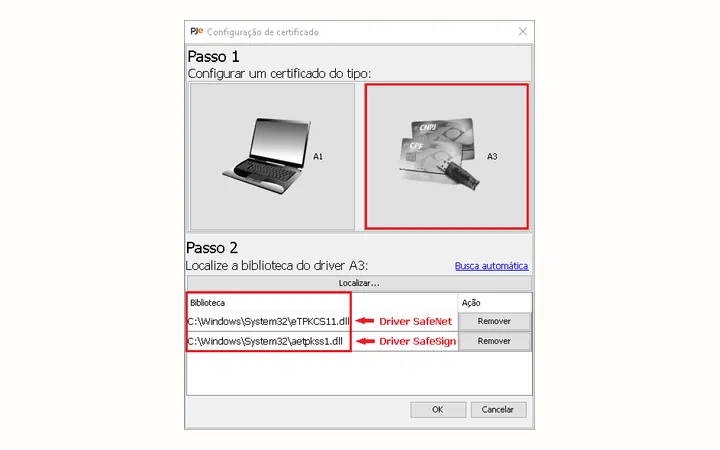
Start with the default PJeOffice certificate source and refresh the list. On Windows, the Windows repository option can increase compatibility with tokens and smart-card readers already exposed to the operating system.
An A1 certificate should be selected through the dedicated file-based configuration. An A3 certificate should not require copying a private key file from the hardware. If the vendor application cannot read the token, repair that device layer before changing PJeOffice settings.
- Use the certificate holder and validity dates to identify the correct certificate.
- Do not test by signing a confidential filing first.
- Do not upload the certificate file or reveal the PIN in a support message.
- Use current instructions from the certificate authority or device manufacturer.
Check the token driver and PKCS#11 library
PJeOffice needs a compatible software library to communicate with most A3 devices.
- 1
Test the vendor software
Open the certificate authority or manufacturer tool and confirm that it detects the device and certificate. If it cannot, PJeOffice is not the first component to repair.
- 2
Check operating-system recognition
On Windows, inspect Device Manager for the token or reader and any warning. On Linux or macOS, use the vendor's supported device checks.
- 3
Use automatic discovery
In PJeOffice, refresh or use automatic driver/library discovery before choosing a file manually.
- 4
Locate PKCS#11 only with documentation
If automatic discovery fails, obtain the exact PKCS#11 library path from the certificate authority or manufacturer. Selecting an arbitrary DLL, SO, or DYLIB can create confusing errors.
- 5
Share useful compatibility evidence
For official support, provide device model, operating system, architecture, middleware version, and the exact error. Exclude PINs and confidential material.
Architecture mismatch can hide the certificate
The official guide specifically warns that incompatible architectures prevent library loading.
Match Windows, PJeOffice, and the driver
If the token driver exposes only a 64-bit library, use a 64-bit PJeOffice build on a 64-bit operating system. A 32-bit application cannot load a 64-bit PKCS#11 library, and the reverse mismatch can also fail.
Before installing the correct build, uninstall an incompatible PJeOffice edition rather than keeping both active. On macOS, also match Intel or Apple Silicon when choosing the application and vendor middleware.
Reconnect an A3 token that disappeared
A USB device or driver can enter an inactive state after working for a period.
- 1
Remove the token
Close any active signing prompt and remove the device cleanly.
- 2
Wait about ten seconds
Give the operating system time to release the previous device session.
- 3
Reconnect and wait
Use the same or another USB port, then wait for the device indicator to remain stable.
- 4
Refresh certificates
Use the refresh control in the PJeOffice certificate list. If it remains missing, test the vendor management software again.
- 5
Restart only if needed
Restart the workstation when the operating system still does not reinitialize the device. A PJeOffice reinstall is not the first response to a sleeping USB session.
Protect the certificate while troubleshooting
A certificate problem does not justify exposing the credential.
Never share the A1 file, token PIN, or certificate password
This site does not need certificate data. Official support should not require your private key. Redact unnecessary personal and case details from screenshots, and use a non-confidential test document when a signing test is necessary.
If the certificate identity is wrong, expired, revoked, or absent from the vendor tool, stop and contact the certificate authority rather than forcing PJeOffice to use it.
Installing Java does not repair a missing token driver
PJeOffice Pro includes its own Java runtime.
The official guide describes manual Java updates as an incorrect troubleshooting path for token recognition. The embedded runtime is maintained by the application's own mechanism.
The device middleware, PKCS#11 library, operating-system device state, architecture, and certificate validity are the components that determine whether PJeOffice can list the certificate.
PJeOffice certificate troubleshooting guide
This PJeOffice certificate troubleshooting guide separates certificate validity, middleware, application configuration, and portal access.
Use this PJeOffice certificate troubleshooting guide by checking an A1 file's password, validity period, and configured source, or an A3 token's USB connection, vendor driver, PKCS#11 library, and architecture. If the vendor utility cannot see the device, repair that lower layer before changing PJeOffice settings.
Continue this PJeOffice certificate troubleshooting guide when the certificate appears inside the application but signing still fails on a court page. Move to browser permission and portal-specific checks. Reinstalling the desktop app is not the first response to every certificate error, and installing a separate Java runtime does not replace a missing device driver. Keep the token connected only as long as necessary, never send its password to an unknown support page, and contact the certificate issuer when validity, PIN lock, or vendor middleware is the confirmed source of failure.
PJeOffice certificate questions
Answers for A1 files and A3 devices.
Why does my certificate work in vendor software but not PJeOffice?
PJeOffice may not have discovered the correct PKCS#11 library, the certificate source may be wrong, or the application and driver architectures may not match.
Where do I find the PKCS#11 library?
Use the certificate authority or device manufacturer's documentation. Do not select an arbitrary system library.
Can Windows certificate integration help?
Yes, on supported Windows setups it can improve compatibility with devices already recognized by the operating-system certificate repository.
Why did the token disappear after working?
A USB device or driver can enter an inactive state. Reconnect it, wait for stable recognition, refresh certificates, and test the vendor tool before reinstalling.
Should I update Java to recognize the token?
No. PJeOffice Pro has an embedded Java runtime. Token recognition depends on the device, driver, PKCS#11, architecture, and certificate state.