Windows 64-bit
For most modern Windows PCs
Opens the official pje.jus.br download source
Download the PJeOffice Pro EXE that matches your Windows architecture. The 64-bit build is the normal choice for current PCs; the 32-bit build is retained for older systems and compatible certificate drivers.
Download Windows 64-bitThe Windows 64-bit EXE is the normal selection for a current PC, while the 32-bit file exists for legacy systems.
Windows architecture and token-driver architecture are related but not identical checks. Start with the operating system: a 32-bit Windows installation must use the 32-bit application. On 64-bit Windows, the 64-bit application is normally preferred. If a certificate authority provides only older middleware, confirm its supported architecture instead of guessing from the token's physical appearance.
An application that installs successfully but cannot list an A3 certificate usually has a different problem from an installer that will not launch. Keeping those stages separate prevents repeated downloads from replacing the same working application while the driver remains incompatible.
Both EXE files come from the official PJe host. Choose 64-bit unless Windows explicitly reports a 32-bit operating system.
For most modern Windows PCs
Opens the official pje.jus.br download source
For older 32-bit Windows systems
Opens the official pje.jus.br download source
Architecture must match the operating system and can also matter when a certificate token driver exposes only a 32-bit or 64-bit PKCS#11 library.
Press Windows + I, select System, and open About. On older Windows versions, search for System information.
Look for a line such as 64-bit operating system, x64-based processor. That means you should use the Windows 64-bit installer.
If an A3 token is not recognized later, confirm that Windows, PJeOffice, and the token driver use compatible architectures. The official guide recommends uninstalling an incompatible PJeOffice build before installing the correct one.
Close the older signer before running the Pro installer so Windows does not leave two competing instances active.
Use the tray icon and choose Exit if the old signer is running. If Windows says another instance already exists, restart the computer before retrying the installation.
Confirm the filename and official host, then run the EXE. If your organization restricts installation, use an administrator account or contact the workstation administrator instead of bypassing policy.
Follow the Windows prompts, allow the application to finish, and launch PJeOffice Pro from the Start menu. The Pro edition is identified by its updated icon and PDF/video functions.
Open the required court portal, initiate the PJeOffice authentication option, and approve the local request. A successful test should show the expected certificate before you sign a real filing.
PJeOffice can read certificates through its own configuration and can integrate with the Windows certificate repository.
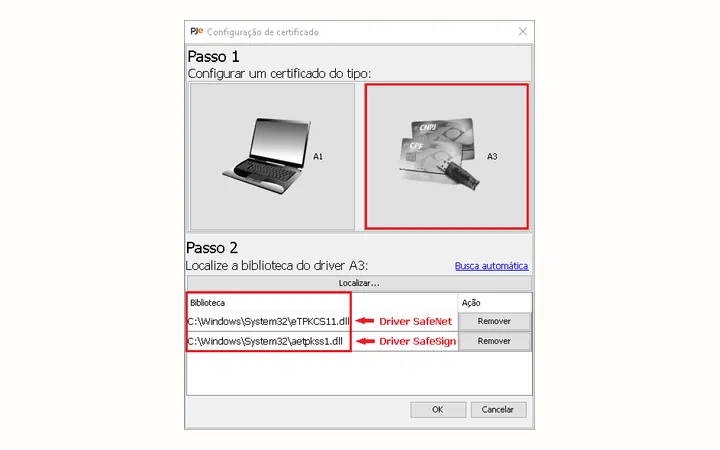
For an A1 certificate, locate the certificate file only through the application setting intended for A1 credentials and keep the password private. For an A3 device, install the driver supplied by the certificate authority or device manufacturer before expecting PJeOffice to read the token or smart card.
The Windows repository option can improve compatibility with older tokens and smart-card readers. If PJeOffice detects the PKCS#11 library but no certificate appears, check whether the device actually contains a valid certificate and whether the driver architecture matches the PJeOffice build.
Use the symptom to choose the next check instead of repeatedly reinstalling the same file.
| Symptom | Likely check | Detailed guide |
|---|---|---|
| PJe says the application is unavailable | Confirm PJeOffice is running and the local request is not blocked | Application unavailable |
| Token appears in Windows but not in PJeOffice | Certificate source, PKCS#11 library, and architecture | Certificate not recognized |
| Another instance is already running | Exit the tray process or restart Windows | Update guide |
| Old instructions ask for Java | Use the embedded runtime; check drivers instead | Java explanation |
A digital certificate can authorize legally meaningful actions.
The Pro guide offers multiple password behaviors. Always requesting the password is the most conservative option. Requesting it once can be more productive but should not be used on a shared or unattended computer.
Lock or sign out of Windows when leaving the workstation, remove external certificate devices when appropriate, and follow your organization's security policy.
Verify the official PJeOffice for Windows download by matching the installer and certificate components to compatible architectures.
Before using the official PJeOffice for Windows download, open Settings, System, and About, then read the System type value. Most current computers need the 64-bit build, while the 32-bit installer is reserved for a Windows installation explicitly identified as 32-bit. This check is more reliable than choosing by the age or brand of the computer.
After downloading PJeOffice for Windows, compare the filename with the architecture selected on this page before approving the installer prompt. Once setup finishes, launch the application normally and verify that its local service is running. If an A3 token is still absent, troubleshoot the token driver and certificate source separately; repeatedly installing PJeOffice for Windows does not replace a missing or incompatible device driver.
Architecture and certificate answers for Windows users.
The official download table provides current Windows 32-bit and 64-bit installers. Use the 64-bit build on a normal 64-bit Windows 11 computer.
Administrator access can be required for installation or an upgrade from the older signer, but normal daily signing should follow your organization's workstation policy.
PJeOffice reads the device through a driver or PKCS#11 library. A 32-bit/64-bit mismatch can prevent the application from loading that library.
Normally no. PJeOffice Pro uses its own embedded Java runtime, so certificate recognition problems should be investigated through drivers, libraries, device status, and architecture.