How to Update PJeOffice to PJeOffice Pro
Move from the older PJeOffice signer to the current Pro edition without leaving two competing instances active. The update should preserve a controlled certificate workflow and use the architecture that matches the computer and token driver.
Get the current installerRecord the PJeOffice update result
A short record helps institutional support distinguish software changes from later certificate or portal failures.
Keep version, architecture, source, and test status
Note the installed version, original filename, operating-system architecture, update date, and whether application launch, certificate detection, and portal authentication passed. Never include a password, PIN, private key, or confidential filing in that record.
How to update PJeOffice without conflicting editions
The update is a controlled replacement of the older signer, not a second parallel installation.
Begin by identifying the edition that currently runs and recording whether the certificate works. Close that process, choose the new build by operating-system architecture, and install from the official source. After launch, confirm the Pro interface and repeat the certificate and portal tests. If a certificate worked before but disappears afterward, compare certificate-source settings and architecture before assuming that the credential itself was changed.
An older desktop shortcut can continue pointing to the legacy executable after the Pro installer finishes. Remove or unpin confusing shortcuts only after confirming the new application path. Keeping one clear launch point reduces duplicate-instance messages and makes a browser connection more predictable.
Organizations should treat the update like other signing-software maintenance. Record the version, source, architecture, date, and test result. That small audit trail helps distinguish a deliberate update from an unexpected workstation change when a filing problem is reviewed later.
Old PJeOffice versus PJeOffice Pro
Confirm the installed edition before changing anything.
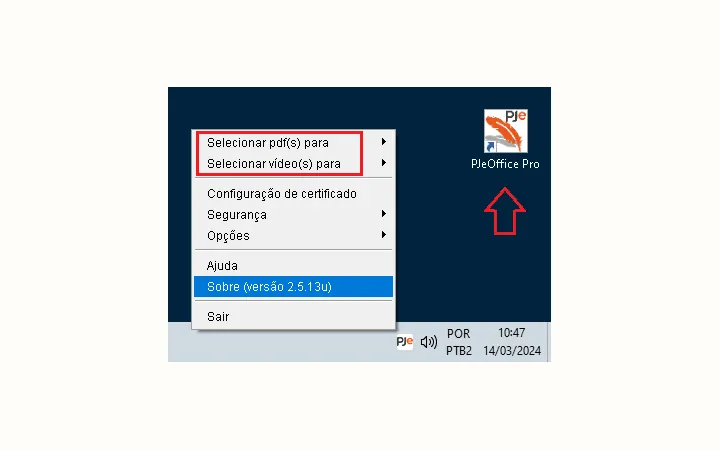
The official migration section describes PJeOffice Pro as the edition with the orange feather icon and additional PDF and video tools. The older signer does not include those office functions.
Do not assume an old desktop shortcut opens the newest executable. Launch the app, inspect the interface and version, then close it before installing. If the Pro edition and current version are already present, repeated reinstallations are unlikely to solve a certificate-driver issue.
- Pro adds local PDF signing and manipulation.
- Pro adds local MP4 splitting and conversion tools.
- Pro improves certificate configuration and security options.
- Pro includes its own tested Java runtime and updater.
Update PJeOffice step by step
The official guide recommends closing the previous signer and running the update with appropriate permissions.
- 1
Finish pending signing work
Complete or save any open work, then close the browser tabs using PJe and exit the older PJeOffice application from its menu or tray icon.
- 2
Confirm the computer architecture
Check Windows 32/64-bit, macOS Intel/Apple Silicon, or Linux 32/64-bit. If an A3 token is involved, confirm its driver architecture as well.
- 3
Download the current Pro build
Use the official-source download matrix. Avoid an old installer saved in Downloads because its filename may look similar.
- 4
Run the installer
On Windows, the official guide shows running the installer or upgrade with administrator approval. On macOS and Linux, use the platform-specific flow and keep system security controls enabled.
- 5
Launch only the Pro edition
Remove or unpin obsolete shortcuts if they create confusion. Verify the Pro interface and current version before reconnecting a court portal.
- 6
Refresh and test certificates
Reconnect the token if used, refresh the certificate list, and test authentication. Do not sign a real document until the correct certificate identity appears.
What does PJeOffice 1.0.26 or higher mean?
It is normally a minimum-version statement from older instructions, not a current download recommendation.
Do not downgrade just to match an old document
A phrase such as 'PJeOffice 1.0.26 or higher' accepts newer compatible versions. The current official guide lists the Pro line at 2.5.16u, which is numerically and functionally later than the legacy 1.0.26 reference.
Only use a specifically older version when a current, authoritative court or CNJ support instruction identifies a documented compatibility need. This site does not provide old installer mirrors.
Verify the update before signing
Confirm the application, certificate, portal connection, and local file functions.
- Only one PJeOffice process is active.
- The interface identifies the Pro edition and expected current version.
- The correct A1 or A3 certificate appears after refresh.
- The court portal can request the local PJeOffice service.
- A test authentication shows the correct holder and validity period.
- A local non-confidential PDF test can be opened or signed through the intended workflow.
Diagnose the component that failed
Separate installer, application, certificate, and portal problems before deciding to reinstall.
If the installer fails, verify architecture, permissions, available disk space, and the official filename. If the app launches but the certificate is missing, the installer probably completed; focus on the certificate source, vendor driver, PKCS#11 library, and device state. If the certificate appears but the court reports that the app is unavailable, focus on the local browser-to-app connection.
Reinstalling the same file repeatedly can hide the useful distinction between those failure stages. Record the exact stage and message, then use the related troubleshooting guide or an official support channel.
How to update PJeOffice safely
To understand how to update PJeOffice safely, first record the installed edition, version, certificate source, and error message.
The first step in how to update PJeOffice safely is closing every running signer instance before starting the installer for the current Pro build. Use the package that matches the existing operating-system architecture. Keeping the previous error text and version details makes it possible to distinguish a successful application update from a certificate driver problem that continues afterward.
After you update PJeOffice, open the Pro interface and confirm the displayed version before testing the A1 file or A3 token. Finish with the court portal rather than using portal access as the first test. If the application launches and recognizes the certificate but the website still fails, the update itself probably succeeded. Check browser permission, local communication, and court availability before uninstalling again. This sequence also avoids treating an old 1.0.26 reference as a reason to downgrade.
PJeOffice update questions
Version and migration answers.
Is PJeOffice Pro newer than 1.0.26?
Yes. The currently listed Pro version is 2.5.16u. An older '1.0.26 or higher' requirement normally allows a later compatible build.
Will updating remove my certificate?
An application update should not invalidate the certificate itself, but certificate-source settings or drivers may still need review. Keep a secure backup of an A1 certificate according to your organization's policy.
Why does PJeOffice say another instance is running?
The old signer or a second Pro process may still be active. Exit the tray process or restart the workstation before opening one edition.
Should I update Java before updating PJeOffice?
No separate Java update is required for PJeOffice Pro. It carries its own tested runtime and update mechanism.