PJeOffice Digital Certificate: A1 vs A3 Setup Guide
Choose A1 when your certificate is a protected file; choose A3 when it is supplied through a token, smart card, or managed device. This PJeOffice digital certificate guide shows how to connect the credential safely, while your provider remains responsible for issuance, renewal, and device software.
Compare A1 and A3PJeOffice digital certificate: choose A1 or A3 first
This PJeOffice digital certificate guide starts with storage type: identify what was issued before selecting an application setting.
A PJeOffice digital certificate is not a separate certificate product. PJeOffice Pro is the desktop application that uses a certificate for PJe access and electronic document signing. The credential itself comes from its issuing provider, so the provider's enrollment, validity, renewal, and recovery instructions still apply.
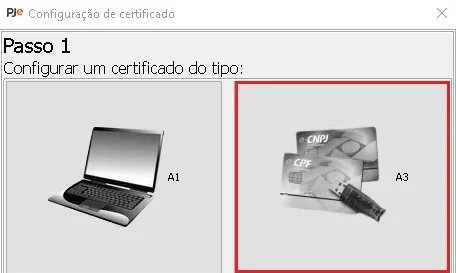
In practical terms, choose A1 if you were issued a protected certificate file. Choose A3 if you use a token, smart card, or another provider-managed device. A cloud HSM is also described as an A3 option in the official guide, but its connection steps depend on the provider. Do not select a setup path because of the court name alone; start with the credential you actually hold.
- A1: a certificate file available on the workstation.
- A3: a token, smart card, reader, or provider-managed device.
- If you are unsure, check the certificate provider's enrollment record or device instructions before changing PJeOffice settings.
A1 and A3 certificate setup compared
Both credential types can support PJeOffice workflows. Their storage and software dependencies differ.
| Credential | Where it is held | What to prepare | PJeOffice path |
|---|---|---|---|
| A1 | A protected file on the computer | The original file, its private password, and a trusted local account | Use the A1 certificate configuration and select the file locally |
| A3 token | A physical USB token | The device, its provider's middleware or driver when required, and the PIN | Use the A3 device path after the operating system can see the token |
| A3 smart card | A card and compatible reader | Reader software, card middleware, and the issuer's instructions | Use the supported card or driver configuration |
| Managed A3 or HSM | A provider-managed or cloud device | The provider's current access and authentication steps | Follow the provider's supported integration instructions |
Identify the certificate without exposing it
A short check before setup helps avoid trying the wrong device or sharing a secret.
Check the enrollment record to see whether the credential is a file or a device. Use the provider's supported utility to confirm its identity and validity. Keep a certificate file local; do not upload it just to inspect it.
Expired, revoked, or locked credentials need the issuer's recovery process. Reinstalling PJeOffice cannot renew or unlock a certificate.
Separate the application from the credential
PJeOffice does not issue, renew, or restore a digital certificate. It provides the local signer connection used by supported PJe workflows. The certificate authority manages the credential, the device maker supplies device software, and the court operates its own portal and access rules.
For support, report the operating system, credential type, device or middleware name, and where the flow stopped. Never include the A1 file, password, token PIN, private key, case documents, or unnecessary personal data.
Set up an A1 certificate in PJeOffice
Keep the file and its password on the workstation while you add it to the application.
- 1
Confirm the provider and validity
Use the provider's supported utility to confirm the holder and validity. Contact the issuer if the certificate is expired, revoked, or locked.
- 2
Open the A1 certificate settings
Launch PJeOffice Pro normally and choose the A1 or file-based option shown in its certificate settings. Keep the file out of web forms and unrelated certificate stores.
- 3
Select the file locally
Use the application's file chooser to select the original file. Do not rename or convert it while troubleshooting.
- 4
Enter the password in the expected prompt
Type it only into the local PJeOffice or provider prompt you initiated. Never send it in a screenshot, chat, or email. Follow the issuer's recovery process if it is rejected.
- 5
Verify the listed identity
Refresh the certificate list and confirm the expected holder and validity. If it is absent or wrong, stop before a real filing and check the file, status, and source.
Set up an A3 token or smart card
PJeOffice can only use a device through a connection method supported by the credential and its provider.
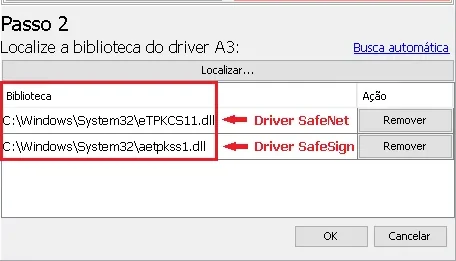
Install the middleware recommended by the provider or device maker, then check that its utility can see the token or card. If it cannot, repair the device or middleware layer before changing PJeOffice settings.
Refresh the PJeOffice certificate list or use automatic discovery. If a PKCS#11 library is requested, use the provider's documented location; names vary by device and operating system. Do not copy a path from a screenshot.
Keep the application, operating system, and device software compatible. On Windows, the documented certificate-repository option may help when Windows already sees the device, but it does not replace missing middleware.
- Wait for the device to finish initializing before refreshing certificates.
- Use the provider utility to check the device before reinstalling PJeOffice.
- If the certificate disappears, note whether the operating system still sees the token or reader.
- Ask the provider about driver, reader, PIN-lock, or certificate-status problems.
Approve only a certificate request you started
A local prompt is a decision point, not a routine notification to dismiss.
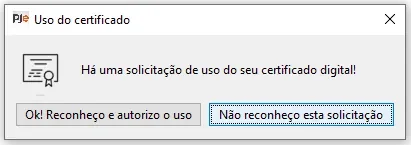
When a PJe page asks the local signer to use a certificate, match the prompt to an action you just started. Check the active portal tab and expected authentication or signing step. Cancel an unexpected request and return through a trusted route.
The official guide documents password and device-use confirmation options. Review them for the workstation: a shared or unattended computer needs stricter handling than a private one.
- Never approve a request that appeared when you were not using PJe.
- Do not leave an unlocked workstation with an A1 password or A3 device available.
- If a prompt looks different from the action you initiated, cancel and ask the portal or provider support channel.
Test the complete certificate path safely
Check each handoff in order so an application issue is not confused with a portal or account issue.
- 1
Confirm PJeOffice is running
Open the application from its normal desktop entry and wait until its status is ready. Do not start several copies while investigating a missing certificate.
- 2
Check the certificate list
Confirm that the intended A1 or A3 credential appears and that its holder and validity match the provider's record. If it does not, continue with certificate or device diagnostics rather than the portal.
- 3
Start a low-risk portal check
Open the required court portal through its official website and choose the PJeOffice authentication or signing option. Start a test only when you understand what the portal will request.
- 4
Review before authorizing
Approve only the local request you initiated and only when the selected certificate is expected. Do not use a confidential filing as the first test; follow the court or provider's supported test procedure.
A certificate problem does not always mean PJeOffice is broken
Use the last successful step to narrow the responsible component.
Follow the evidence to the right support channel
If the issuer's utility cannot see an A3 device, ask the provider or device maker about the middleware, reader, PIN, or device state. If that utility works but PJeOffice does not list the certificate, check its source, library discovery, and architecture. If PJeOffice lists it but the portal rejects it, check the portal and account guidance.
Ask the issuer about uncertain A1 validity or passwords. Use the installation guide for a signer that will not launch, and the browser-to-signer checks when the browser cannot reach the local application. Reinstalling PJeOffice will not renew a certificate, unlock a PIN, or restore a missing driver.
Official PJeOffice certificate sources
The PJeOffice digital certificate setup below follows the official guide; use your provider's instructions for credential-specific steps.
PJeOffice digital certificate questions
Short answers about certificate type, setup, and safe use.
What is the difference between A1 and A3 for PJeOffice?
A1 is held as a protected file on the computer. A3 is used through a token, smart card, or another provider-managed device such as a supported HSM.
Does PJeOffice issue or renew my digital certificate?
No. PJeOffice is the local application that uses a certificate for PJe access and electronic signing. The issuing provider manages enrollment, renewal, and credential recovery.
Where should I get an A3 token driver?
Use the current instructions from the certificate provider or device manufacturer. Do not select a PKCS#11 library from an unrelated screenshot or download site.
Can I upload my A1 file to get help?
No. Keep the file and its password private. Share the operating system, provider utility result, and error stage instead, without sending a private key or PIN.
Why does PJeOffice list my certificate but the court portal rejects it?
The credential may be visible locally while the portal, account authorization, or court workflow has a separate issue. Check the portal's official access guidance and note where the request stopped.
Should I reinstall PJeOffice when an A3 token is missing?
Not as the first step. Check whether the operating system and provider utility can see the token, then verify middleware, library discovery, certificate source, and compatible architecture.
Is the certificate-use prompt safe to approve automatically?
No. Approve only a request that matches a PJe action you started. Cancel unexpected prompts and review the workstation's security settings.