Windows 64-bit
For most modern Windows PCs
Opens the official pje.jus.br download source
Find the common official PJeOffice Pro installer for TJPE work, choose the correct operating-system build, open the official TJPE entry point, and identify whether a failure belongs to the signer, certificate, browser connection, or court service.
Choose a downloadThe court acronym identifies the destination and support context; it does not by itself prove that a renamed installer exists.
A TJPE download search can combine three different tasks: choosing PJeOffice Pro, opening the Pernambuco court's PJe entry point, and solving a certificate or account problem. The desktop application cannot change a court permission, filing account, maintenance window, or remote service status.
Use the common official PJeOffice Pro build first, then use the official TJPE website for current portal and support instructions.
The phrase PJeOffice TJPE usually describes a court-specific access need rather than a special TJPE binary. Choose the installer by operating system and processor, keep the original PJeOffice Pro filename, and use the first-party PJe distribution host. A package renamed with a TJPE suffix is not automatically more official or more compatible. The current site verification records version 2.5.16u and six stable first-party file destinations; the page does not repackage or mirror those installers.
After installation, open the official TJPE website and follow its current PJe access path instead of relying on an old deep link copied from a forum or a stale PDF. Court portals can change while the desktop version stays the same. Test the workflow in order: PJeOffice starts, the expected certificate is visible, the browser-to-application request appears, and the TJPE service accepts the authentication step. This order makes it easier to identify the failing component without repeatedly reinstalling a working application.
Users working on a managed legal or institutional computer should also follow the organization's browser, token-driver, firewall, and certificate policies. Do not send a certificate file, private key, token PIN, or case document to a download site. If the account, case access, filing permission, or court service is the failing layer, use TJPE support rather than treating the problem as an installer defect.
The software file is selected by platform and architecture, not by the TJPE acronym.
For most modern Windows PCs
Opens the official pje.jus.br download source
For older 32-bit Windows systems
Opens the official pje.jus.br download source
For M1, M2, M3, M4, and later chips
Opens the official pje.jus.br download source
For Mac computers with an Intel processor
Opens the official pje.jus.br download source
For most current Linux distributions
Opens the official pje.jus.br download source
For legacy 32-bit Linux systems
Opens the official pje.jus.br download source
A useful PJeOffice TJPE guide keeps each destination visible so that a broken court link does not lead to an unnecessary reinstall.
pje-office.pje.jus.brtjpe.jus.brThe portal cannot authenticate a certificate that the local PJeOffice process cannot detect.
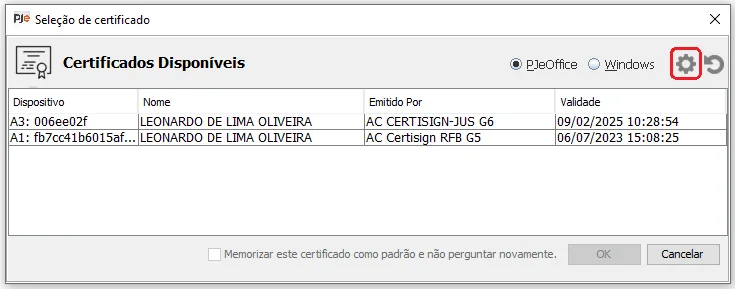
Before testing TJPE, open PJeOffice and check that the intended A1 certificate or A3 token appears in the certificate selection area. If the list is empty, the next step is local certificate or driver diagnosis, not a court-portal reinstall. Check the certificate validity, the selected source, the token connection, and whether the vendor middleware is installed for the same architecture as the application.
This screenshot is an official documentation example rather than a live TJPE result. The important decision is the sequence: the local signer must see the certificate before a remote portal can request it. Keep the certificate file and PIN private; the page never asks users to upload either one.
Treat installation, certificate recognition, local browser connection, and TJPE access as separate checkpoints.
Use Windows 64-bit on most current PCs, Windows 32-bit only on a matching legacy system, Apple Silicon on M-series Macs, Intel on older Macs, or the matching Linux architecture.
Avoid running two PJe signer editions at the same time. Keep the downloaded filename unchanged and compare its version and platform suffix before opening it.
Start PJeOffice, confirm the expected A1 or A3 certificate is visible, and resolve token-driver or PKCS#11 issues before testing the court portal.
Start from the official TJPE website and follow its current PJe navigation. Do not assume an old bookmarked login URL is still the correct portal.
When the browser asks PJeOffice to use a certificate, verify the application request and certificate identity before approving it. Then record whether the failure occurs locally or on the TJPE side.
The observed stage usually identifies the owner of the next troubleshooting step.
| Observed result | Most relevant owner | Next step |
|---|---|---|
| PJeOffice does not start | Local workstation or application | Verify the build, close duplicate processes, and reinstall only when the installation is genuinely damaged |
| PJeOffice starts but the certificate is missing | Certificate source, token, or vendor driver | Use the certificate troubleshooting guide and check A1/A3 middleware or PKCS#11 configuration |
| The certificate appears but the browser cannot reach PJeOffice | Local browser-to-application connection | Keep one signer instance running, repeat the request from the official portal, and review local security policy |
| The local checks pass but TJPE access fails | Court portal, account, or court-side service | Open the official TJPE site, check its current PJe instructions or notices, and use the court support channel |
| Several users cannot access the same TJPE service | TJPE service or maintenance | Treat it as a court-side availability issue instead of reinstalling every workstation |
A1 files and A3 tokens fail in different ways, even when the visible portal message is similar.
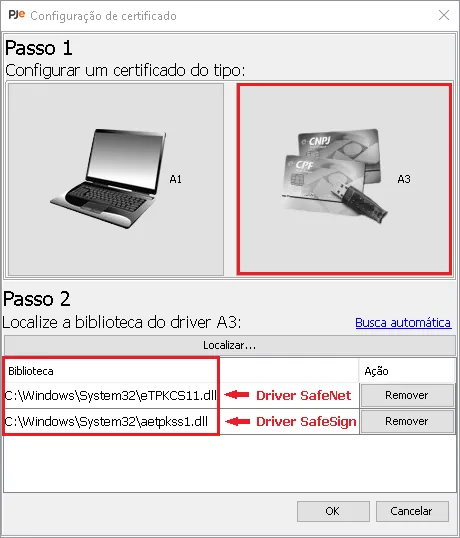
An A1 certificate is normally a file-based credential, while an A3 workflow commonly depends on a token, smart card, reader, or vendor middleware. Confirm which kind you own before changing settings. For an A3 token, check that the operating system detects the device, the vendor software is installed, the PIN is not locked, and the required PKCS#11 library matches the application architecture.
Do not disable antivirus, Gatekeeper, browser protections, or organizational security controls globally to force a signing request through. If the certificate is valid and visible locally but TJPE still rejects access, move the investigation to the official court portal and support process.
Updated should mean a current first-party build and current court instructions, not a renamed mirror.
This site checked the public PJeOffice Pro guide and the six direct installer URLs on August 1, 2026. The verified public version remains 2.5.16u. Windows, macOS, and Linux files retain their original platform and architecture suffixes; no TJPE-specific filename is required for the common workflow.
A future TJPE notice may change the portal, minimum browser requirement, certificate instructions, or support route without changing the desktop file. Recheck both layers independently. Do not downgrade to an old 1.0.26 reference unless a first-party instruction explicitly establishes a compatible minimum and explains the reason.
A working signer still requires a deliberate approval step before it uses a private key.
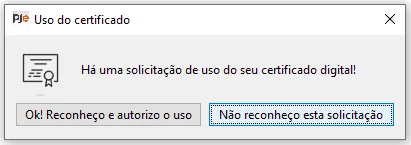
When the browser or TJPE portal asks the local application to use a certificate, pause and confirm that you recognize the request and the certificate identity. A confirmation dialog is not proof that the remote filing or account is correct; it is the point where the local application may access the selected credential.
If the request appears unexpectedly, cancel it and inspect the portal address, open tabs, and certificate selection. Never share a PIN or private key with a support contact, mirror, download form, or unrelated extension.
Use first-party sources for the installer, court entry point, and current local instructions.
The useful answer is one common installer plus a current TJPE access route, not a second unofficial package.
Start with the PJeOffice TJPE download choice that matches the computer, then keep the official filename and source host visible. After the application starts, confirm the certificate and local browser connection before opening the TJPE portal. This sequence prevents a court-side problem from being misdiagnosed as a broken installer and prevents a missing token driver from being blamed on the court.
When the local checkpoints pass, use the official TJPE website for the current PJe entry point, account instructions, service notices, and support ownership. The page is an independent guide: it cannot grant access to a case, recover a certificate, confirm a filing deadline, or guarantee that a submission was accepted. Follow a current first-party court instruction when it conflicts with general guidance.
Answers for download, certificate, portal, and availability intent.
Use the common official-source PJeOffice Pro file that matches your operating system and processor. Use the official TJPE website separately for the current court portal and local instructions.
The court acronym does not by itself establish a separate binary. Choose Windows 32/64-bit or macOS Intel/Apple Silicon from the common official PJeOffice Pro matrix and keep the original filename.
First confirm that PJeOffice is running, the certificate is visible, and the browser-to-application request works. If those checks pass, use the official TJPE portal and support path to investigate court-side or account issues.
Do not install a random old package or a separate Java runtime just because an old guide mentions it. Start with the current verified PJeOffice Pro build and follow a first-party TJPE instruction if it states a specific minimum or prerequisite.